✓ Royal Mail Authorised Inspector since 2008 | Trading since 2005


Label Printer Printing Support
Mailcoms Support · Label Printer
How to print a test label, fix printing faults and improve print quality on your Mailcoms label printer.
⚡ Save on supplies
Franking label rolls & supplies
Thermal label rolls and franking supplies for your label printer - genuine Mailcoms quality at Mailcoms prices. Free UK delivery on orders over £40.
Printing a test label print on the label printer
Print a test label can check whether the printer has any problems. To print a test print:
1. Make sure that the label roll has been installed properly.
2. Turn on the power while holding down the Feed/Cancel button until the test label begins to print. This may take around 10 seconds.
The test label with show the current printer configuration information. After the self-test results are printed, a printer enters into print ready mode.
Label printer is not printing and printer green light is flashing for the label Printer
Issue
The label printer is not printing but the green light on the printer is flashing green indicating the printer is receiving communication.
Cause
The label printer roll is not seated properly.
Resolution
1. Open the printer cover.
2. Re-seat the label roll.
3. Close the printer cover firmly.
4. Try to print again.
Poor print quality with the label printer in Trackable Labels
Issue
When printing 4 x 6″ labels with a 1E35 or 1E42 printer, the print quality is poor. This may include faded text, unreadable bar codes, or streaks through text and graphics.
Cause
The most likely cause is a buildup of debris on the printhead.
Resolution
Clean the printhead:
1. Check for and remove any debris or label material on the rollers and printhead.
2. Turn off the power switch and unplug the printer.
3. Open the printer. Wait a few minutes for the printhead to cool.
4. Remove any installed media. Using a cotton bud moistened (not soaked) with isopropyl alcohol, thoroughly clean the printhead.
A faster method to print a shipping label
When using your label Printer, saving time where possible is key to getting your mail out of the door. See below steps on how to quickly create a shipping label with less clicks & see the faster method of printing your labels.
1. When you log into your shipping account, navigate to the cog button (in the top right) and select “Print Options”.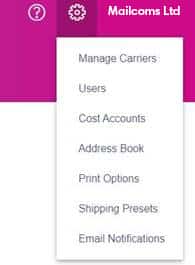
2. Un-tick the box “Always show this option before printing” as per the image below.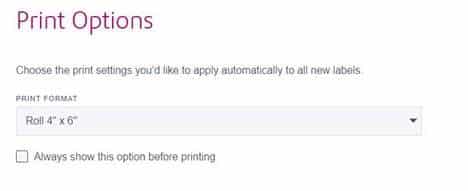
Resolving printing issues in your Online Shipping Account
Issue
Printing issues using your Online Shipping Account.
Cause
There is an issue with the printer or the print driver.
Resolution
Labels Printing too small
1. Select “Settings cog > Print Options”.
2. If the Choose Format menu is set to Plain Paper – A4, select Roll – 4 x 6.
3. If Plain Paper – is always selected by default, you can change this to 4 x 6 by Adjusting your default label printing settings.
How to cancel a Parcelforce or Royal Mail parcel label that’s already been printed
Occasionally you may want to or need to cancel a parcel label that has already been printed. In this case, please follow the below procedure.
1. Select “Home”.
2. Click on “Shipping History”.
3. Select “Label”.
4. Select “Void label.
5. Check the box on the pop up notice.
6. Select “Continue”.
7. We need to make sure the label has been cancelled. Select “Home”.
8. Click on “Shipping History”.
9. The status should read “Refund Requested”.
Label Printer Printing Support – Frequently Asked Questions
How do I print a test label?
Make sure the label roll is installed, then turn on the power while holding the Feed/Cancel button until the test label prints (around 10 seconds).
Why is my label printer not printing with a flashing green light?
The label roll is not seated properly. Open the cover, re-seat the roll, close it firmly and try again.
How do I fix poor print quality on the label printer?
Clean the printhead: remove any debris, switch off and unplug, let it cool, then gently clean the printhead with a cotton bud lightly moistened with isopropyl alcohol.
Need help with label printing?
Our technical team are Royal Mail Authorised Inspectors and fully qualified franking machine engineers. Call us on 01543 572 776 – Mon–Fri 9:00 to 17:00.