✓ Royal Mail Authorised Inspector since 2008 | Trading since 2005


FX Series 7 Printing Support
Frama FX Series 7 · Printing
How to fix printing problems on the Frama FX Series 7 franking machine, including deep-cleaning and replacing the ink cartridge, cleaning the print heads automatically or manually, and clearing cartridge contact errors.
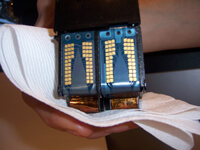
The FX Series 7 ink cartridge uses inkjet technology and contains two print heads that must be aligned. The nozzles need regular cleaning for good print quality — the machine cleans them automatically or on request, and you can also clean them manually.
How do I deep-clean the FX Series 7 ink cartridge?
If the cartridge will not print despite having ink (no print, half print or poor print), deep-clean the print head with hot water until the ink flows in two parallel tram lines.
You will need: the faulty ink cartridge, a folded warm damp cloth, folded tissue or kitchen roll, and a mug of boiling hot water.
- Remove the ink cartridge from the franking machine.
- Press the cartridge down onto folded tissue to see if the ink flows.
- Place the tip of the print head into the boiling water and hold it there for around 30 seconds.
- Press the cartridge onto a warm damp cloth for around 10 seconds.
- Press it onto the tissue again to check the ink flow — you are aiming for two parallel tram lines.
- Place the cartridge back in the machine and run a test print. Repeat if the problem persists.
How do I replace the ink cartridge on the FX Series 7?
To replace the ink cartridge, open the cover, click out the old cartridge and fit the new one, then let the machine align it.
- Open the cover/lid — the cartridge moves to the replacement position.
- Firmly press down on the bottom of the cartridge to disengage it; it clicks out of place.
- Slowly and carefully lift out the old cartridge.
- Remove the protective layer from the new cartridge.
- Place the new cartridge into the machine so it is seated nicely, then firmly press down on the top until it clicks into place.
- Close the cover/lid and press OK. The alignment process starts automatically.
Caution: Keep your fingers away from the cartridge while it is moving to the replacement position.
How do I fix printing problems on the FX Series 7?
The FX Series 7 cartridge is made from two offset HP45 cartridges, whose nozzles can clog with paper dust or dry out in transit, storage or after non-use. To fix poor print, clean and prime the print heads against tissue until two solid tram lines appear.
- Remove the ink cartridge from the franking machine.
- Clean the print heads with a warm damp cloth or tissue.
- Hold the supplied alcohol wipe (or tissue) against the heads, point the brass print heads down and away from you, and shake well, keeping the tissue tight against the heads.
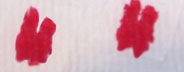
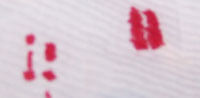
- Check for two solid tram lines. If you see no ink or broken lines, wipe the heads and repeat.
- If it persists, clean the brass print heads with a cloth and warm soapy water, then repeat.
Caution: Ink may leak during this process — handle the cartridge carefully and keep the tissue pressed against the print heads.
Good ink flow — two solid tram lines:
Poor ink flow — no ink or broken lines (repeat the cleaning):
How do I clear “Not Registering”, “No Cartridge Found” or “Headset Incompatible” on the FX Series 7?
These messages usually mean the cartridge contacts are dirty. Clean the gold contacts to clear them.
You will need: the cartridge with dirty contacts, and a rubber or alcohol wipe.
- Remove the ink cartridge from the franking machine.
- Carefully clean the contacts using a rubber or the alcohol wipe provided.
- Dry off or wipe away any residue.
- Reinsert the cartridge and test again.
How do I clean the print heads automatically on the FX Series 7?
If the print looks unclear or dirty, run the automatic head cleaning. If you have to clean too often, change the automatic cleaning interval.
- Press the Menu button.
- Select Cartridge and press OK.
- Select Cleaning Process and press OK. The cleaning starts automatically.
How do I clean the print heads manually on the FX Series 7?
If automatic cleaning is not enough, clean the heads by hand.
- Open the base cover.
- Remove the ink cartridge.
- Clean the heads with a soft damp cloth.
- Put the cartridge back in place and close the cover.
FX Series 7 Printing – Frequently Asked Questions
Why is my FX Series 7 printing poorly or not at all?
The HP45 print head nozzles have usually clogged or dried out. Clean and prime the heads against tissue until two solid tram lines appear, or deep-clean with hot water, then refit and test.
How do I fix a “No Cartridge Found” message on the FX Series 7?
The cartridge contacts are usually dirty. Remove the cartridge, clean the gold contacts with a rubber or alcohol wipe, refit it and test again.
How do I run a print head clean on the FX Series 7?
Press Menu, select Cartridge, then Cleaning Process and OK to clean automatically. If that is not enough, open the base cover and wipe the heads with a soft damp cloth.
Still having printing problems with your FX Series 7?
Our technical team are Royal Mail Authorised Inspectors and fully qualified franking machine engineers. Call us on 01543 572 776 – Mon–Fri 9:00 to 17:00.