✓ Royal Mail Authorised Inspector since 2008 | Trading since 2005


Matrix F12 Printing Support
Frama Matrix F12 · Printing
How to fix printing problems on the Frama Matrix F12 franking machine by cleaning the ink cartridge print heads and the cartridge contacts.
How do I fix poor print quality on the Matrix F12?
The Matrix F12 ink cartridge is made from two offset HP45 cartridges, whose nozzles can clog with paper dust or dry out in transit, storage, or after a period of non-use. To fix poor print, clean and re-prime the print heads until the ink flows in two solid lines.
- Remove the ink cartridge from the franking machine.
- Give the print heads a good clean with a warm damp cloth or tissue.
- Hold the supplied alcohol wipe (or a few sheets of tissue) against the heads. With the brass print heads pointing down and away from you, shake the cartridge well, keeping the tissue tight against the heads.
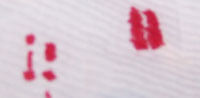
- Check the ink is flowing — you should see two sets of solid “tram” lines.
- If you see no ink or broken tram lines, wipe the print heads with the alcohol wipe or damp tissue and repeat.
- If the problem persists, clean the brass print heads with a cloth and warm soapy water, then repeat the process.
Caution: Ink may leak during this process — handle the cartridge carefully and keep the tissue pressed firmly against the print heads.
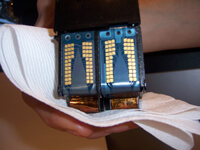
Good ink flow — two solid parallel tram lines:

Poor ink flow — no ink or broken tram lines (repeat the cleaning):
How do I clean the cartridge contacts on the Matrix F12?
If cleaning the print heads does not fix the print, clean the cartridge’s gold contacts and the corresponding pins inside the machine.
- Turn the unit on and open the lid or top cover.
- Remove the ink cartridge from the franking machine.
- Using a clean, dry lint-free cloth, the supplied alcohol wipe or a rubber, briskly rub the gold contacts from top to bottom. Also wipe your finger over the corresponding gold pins inside the machine to ensure no ink is on them.
- Re-insert the cartridge and close the top cover.
- Print a test page. If the problem persists, contact Mailcoms.
Matrix F12 Printing – Frequently Asked Questions
Why is my Matrix F12 printing poorly or not at all?
The HP45 print head nozzles have usually clogged with paper dust or dried out. Clean the heads with a warm damp cloth, prime them against tissue until two solid tram lines appear, then refit and test.
What do the two tram lines mean?
Pressing the cartridge onto tissue should leave two solid parallel ink lines. Broken lines or no ink mean the nozzles are still blocked, so repeat the cleaning.
My Matrix F12 still prints badly after cleaning the heads — what next?
Clean the cartridge’s gold contacts and the matching pins inside the machine with a lint-free cloth, alcohol wipe or rubber, refit the cartridge and print a test page. If it persists, contact Mailcoms.
Still having printing problems with your Matrix F12?
Our technical team are Royal Mail Authorised Inspectors and fully qualified franking machine engineers. Call us on 01543 572 776 – Mon–Fri 9:00 to 17:00.