✓ Royal Mail Authorised Inspector since 2008 | Trading since 2005


Using Your Label Printer
Mailcoms Support · Label Printer
How to read the LED status lights, change the label roll and switch modes on your Mailcoms label printer.
⚡ Save on supplies
Franking label rolls & supplies
Thermal label rolls and franking supplies for your label printer - genuine Mailcoms quality at Mailcoms prices. Free UK delivery on orders over £40.
Understanding your printer LED light codes on the label printer
The LED Lights on the top of the label printer indicate the status of the printer in operation.
The table below explains what the different light combinations mean.
| LED 1 | LED 2 | Status |
|---|---|---|
| Green On | Green On | Ready Mode |
| Green On | Red Flashing | Print Cancel Mode- Wait |
| Green Flashing | Red On | Print is temporarily paused- Wait |
| Green Flashing | Green Flashing | Print Standby Mode- Wait |
| Orange On | Orange On | Mode Switching Notification |
| Red On | Orange On | Error- Media Stoppage/ Jam |
| Red On | Green Flashing | Error- Printer Head Overheating |
| Red On | Orange Flashing | Error- No Media/Label Roll Empty |
| Red On | Red Flashing | Cover Open |
| Red On | Off | Error- Media Calibration Failure |
Switching the label printer from Standby Mode to Print Ready Mode
To switch to print ready mode without feeding any labels.
1. Press the Pause button
2.Press the Feed/Cancel button to feed one page to align the media position and switch to the print ready mode.
Changing the label roll on the label printer
If you have used all of your thermal label roll and it is empty, you will need to replace it.
Watch this video to learn how to change your thermal roll.
To change your thermal roll, please follow the below instructions:
Position the label roll as shown below.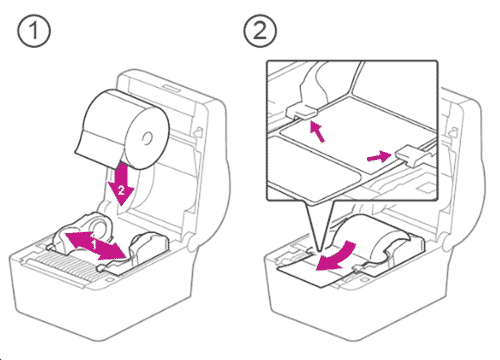
Once the label roll has been positioned, close the cover and press the button to feed the label.
Replacing the roller on the label Printer
Replace the print roller if you have cleaned the roller and are still experiencing slipping, regular miss-feeds or marks or smears on your label prints.
Caution
– Ensure that the printer is turned off before cleaning.
– The Print head is very hot when printing. Allow to cool before cleaning the print head.
To replace the roller, ensure that the printer is switched off and disconnected from the power supply.
Warning: Please refer to the label Safety instructions before lifting the top cover. Do not touch heated area of print–head when cleaning. Personal injury may result from static electricity.
1. Open the top cover.
2. Rotate the roller holders and separate the roller assembly.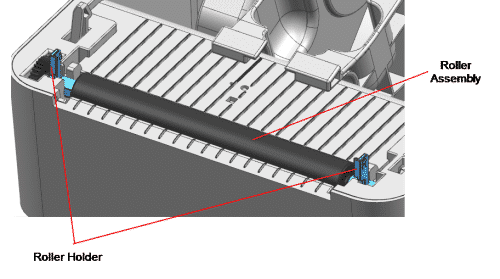
3. Assemble new roller assembly in reverse order using the new roller.
Cleaning the sensors, roller and media path on the label printer
Cleaning the sensors, roller and media path on your printer is essential maintenance and will help to maintain good print quality. To perform this maintenance please follow the instructions below.
Caution
– Ensure that the printer is turned off before cleaning.
– The Print head is very hot when printing. Allow to cool before cleaning the print head.
Warning: Please refer to the label Safety instructions before lifting the top cover. Do not touch heated area of print–head when cleaning. Personal injury may result from static electricity.
1. Open the top cover and remove the label roll.
2. Remove any dirt, dust or foreign objects with a cloth or cotton swab soaked in alcohol.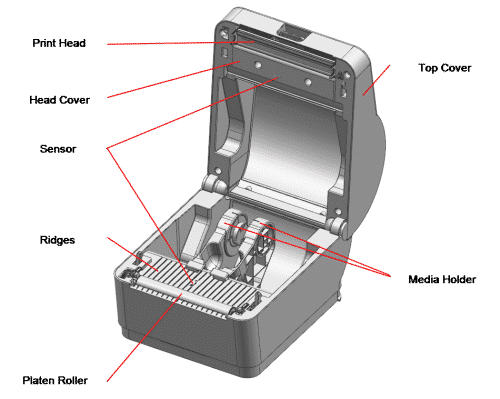
Cleaning the print head on the label printer
Cleaning the Print Head can improve print quality from your printer. To perform this maintenance please follow the instructions below.
Caution
– Ensure that the printer is turned off before cleaning.
– The Print head is very hot when printing. Allow to cool before cleaning the print head.
Warning: Please refer to the label Safety instructions before lifting the top cover. Do not touch heated area of print–head when cleaning. Personal injury may result from static electricity.
1. Open the top cover.
2. Remove any dirt, dust or foreign objects with a cloth or cotton swab soaked in alcohol.
After cleaning the head, do not use the printer until the alcohol used for cleaning evaporates completely. (1-2 min)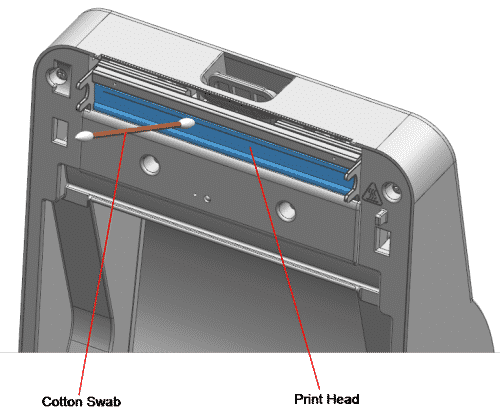
Note: Perform the cleaning process each time the label roll is replaced to prevent print quality deterioration.
Setting the print options on the label printer
Setting Print Options is required after you have installed the Mac driver. To set your Print Option Settings follow the steps below.
1. Start an application.
2. Select “Print” in the File menu.
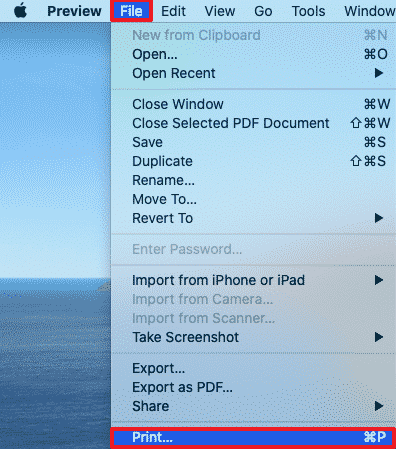
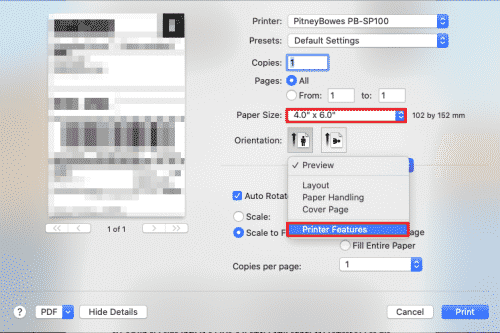
3. Select “Paper Size”.
4. Select “Printer Features” in Application Name combo box.
5. In “General” feature set, you can set Sensor Type, Rotation Angle, Number of Copies.
6. In “Printer Setting” feature set, from the Feature set drop down menu, you can set Darkness, x Margin, y Margin, Print Rate, Black mark offset, Tear-off offset, Whether to compress printing or not.
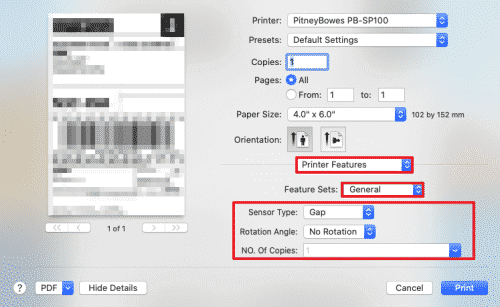
Printing a test label print on the label printer
Print a test label can check whether the printer has any problems. To print a test print:
1. Make sure that the label roll has been installed properly.
2. Turn on the power while holding down the Feed/Cancel button until the test label begins to print. This may take around 10 seconds.
The test label with show the current printer configuration information. After the self-test results are printed, a printer enters into print ready mode.
Using Your Label Printer – Frequently Asked Questions
What do the label printer LED lights mean?
Two green lights mean Ready; flashing combinations indicate the printer is waiting or in standby; red combinations indicate errors such as a jam, no media, overheating or an open cover.
How do I change the label roll?
Position the new thermal label roll as shown, close the cover and press the button to feed the label.
How do I switch the label printer to print ready mode?
Press the Pause button, then press Feed/Cancel to feed one page and switch to print ready mode.
Need help with your label printer?
Our technical team are Royal Mail Authorised Inspectors and fully qualified franking machine engineers. Call us on 01543 572 776 – Mon–Fri 9:00 to 17:00.