✓ Royal Mail Authorised Inspector since 2008 | Trading since 2005


SendPro C Error Codes
Pitney Bowes SendPro C · Error Codes
How to fix common error messages on the Pitney Bowes SendPro C franking machine, including paper jams, transaction upload, No PSD, low balance, Not Ready to Print, sync and feeder errors.
How do I clear a “Clear Paper Jam” message on the SendPro C?
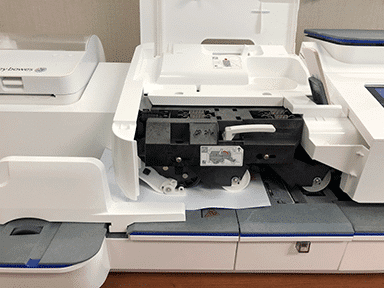
A “Clear Paper Jam” message means a mail piece has stopped inside the machine. To clear it, release the transport and remove the envelope; if it persists, reboot.
- Turn the transport release lever clockwise to the released position.
- Carefully pull the envelope out toward the right.
- If the message remains, turn the lever anticlockwise to the home position, hold the power button for 5 seconds to turn off, wait for the display to go off, then after one minute turn the power back on.
How do I fix a “Transaction log upload required” or “Transaction Upload Due” message on the SendPro C?
These messages mean transactions need uploading (“required” stops mail until you do; “due” still lets you run mail). To fix it, sync the transaction data.
- Tap the Settings (gear) icon in the global toolbar.
- Scroll to the Envelope Printer Settings section.
- Tap Sync Transaction Data.
Note: If the upload fails, see our SendPro C Connection Support guide.
How do I fix a “No PSD” message on the SendPro C?
A “No PSD” message means an internal component has malfunctioned and the machine will not function. To fix it, disconnect the network, reboot, then resync and refill.
- Turn off the network connection: unplug the network cable (wired), or in Settings > Wi-Fi slide the toggle off.
- Reboot: unplug the power cable, wait for the display to turn off, wait one minute, then plug the power directly into a wall outlet.
- Reconnect the network cable.
- Manually upload transactions via Settings > Envelope Printer Settings > Sync Transaction Data.
- Perform a postage refill: tap Envelope Printing, then Postage Balance, then Refill Postage, enter the amount and tap Refill Mail Postage.
How do I fix a “Balance Too Low” or “Insufficient Funds” message on the SendPro C?
This means you tried to refill by more than the funds available in your postage account. To resolve it, refill by a lower amount or add funds to your postage account.
How do I fix a “Not Ready to Print” message on the SendPro C?
“Not Ready to Print” can be caused by an uncleared jam, an open jam release lever, a missing or empty ink cartridge or print head, no account selected, or transactions needing upload. Work through the checks below.
- Look for a red exclamation mark (!) indicating a missing/empty print head or ink cartridge, a jam, or an open jam release lever, and resolve it. If you use accounting, make sure an account is selected.
- Check the scale: tap Reset to default and place something on the scale. With no scale, tap the weight button, choose Manual, tap 1 and Apply. Open and close the jam release lever.
- Upload pending transactions via Settings > Sync Transaction Data, then tap Reset to Default.
- Change the print mode: tap Print Mode, Date Correction, Apply, then Reset to default.
- If still not ready, reboot: unplug the power (screen off after 10 seconds), wait 2 minutes, plug back into a wall outlet, tap the power button, then open Envelope Printing and check it says ready to print.
How do I fix a “Distributor Busy” message when refilling postage on the SendPro C?
“Distributor Busy” means the device is still communicating with the server. Wait at least fifteen seconds after the Refill Mail Postage button turns blue.
- Tap Envelope Printing, then Postage Balance, then Refill Postage.
- Wait until the Refill Mail Postage button turns blue, then wait a further fifteen seconds.
- Enter the amount and tap Refill Mail Postage.
- Tap Done or View Receipt.
How do I fix a “PB Commerce Cloud Not Found” message on the SendPro C?
This message means the device cannot sync its daily transaction data, usually due to a network connection, physical connection or firewall issue. Restarting the device is the most common fix.
On Wi-Fi: in Settings > Wi-Fi, tap your network and Forget it, slide Wi-Fi off, unplug the power for 10 seconds, plug back in and power on, then in Settings > Wi-Fi slide Wi-Fi on, select your network, enter the password and tap Connect. Only do this if you know your Wi-Fi password; for Static IP, contact your IT department.
On a wired connection: in Settings > Wired, check whether the connection type is DHCP or Static IP. For DHCP, select DHCP and Connect; if it fails, unplug the power and network cable, wait 2 minutes, reconnect both and power on, then reconnect via DHCP. For Static IP, note the IP Address, Netmask, Gateway and DNS Address, then reconnect and re-enter those values.
Note: If you still cannot connect, ask your IT department to verify the network settings in our SendPro C Connection Support guide.
How do I fix a “Sync your data” message on the SendPro C?
“Sync your data” appears when the device has not been able to upload Envelope Printing transactions, usually because it was locked or off for an extended time, or has connection issues. To fix it, upload the transactions manually; if that fails, restart and try again.
- Tap Settings > Envelope Printer Settings > Sync Transaction Data. Messages show “Preparing” then “Sending Transaction Data”, ending with “Transaction Data Sent” (or “No Sync Required”).
- If it fails, unplug the power (screen off after 10 seconds), wait 30 seconds, plug back into a working wall outlet, power on, and once the network icon shows a connection, run Sync Transaction Data again.
What does the “Ink waste pad is almost full” message mean on the SendPro C?
This message appears about 30 days before the ink waste tank becomes full. The device catches excess ink in a waste tank with a disposable pad. Contact your franking machine supplier to resolve it.
How do I fix a “You’re out of tracking numbers” message on the SendPro C?
This appears when you have printed all your remaining barcodes for Special Delivery or Signed For rates. To fix it, tap Connect Now — the device downloads and installs more barcodes, then you can continue printing.
How do I fix a “Problem with the Feeder” message on the SendPro C?
“Problem with the Feeder” is usually caused by an envelope jam in the feeder. To clear it, open the feeder and release the jam lever.
- Open the feeder cover.
- Lift the jam release lever and move it left until it clicks into place.
- Pull the envelope slightly to the left, then out the front.
- Move the jam release lever back to its original position and close the feeder cover.
- Load the mail stack properly on the feed deck and check the moistener setting lever is correct for your envelopes.
- Tap Start to continue.
SendPro C Error Codes – Frequently Asked Questions
Why does my SendPro C say Not Ready to Print?
Check for a red exclamation mark (missing ink/print head, a jam, or an open jam lever), make sure an account is selected if you use accounting, check the scale, sync pending transactions, then reboot if needed.
Why won’t my SendPro C sync or shows PB Commerce Cloud Not Found?
The device cannot upload its daily transactions. Run Sync Transaction Data; if that fails, restart the device and check your Wi-Fi or wired network connection.
What do I do when I run out of tracking numbers?
Tap Connect Now to download and install more barcodes, then carry on printing Special Delivery or Signed For mail.
Still seeing error codes on your SendPro C?
Our technical team are Royal Mail Authorised Inspectors and fully qualified franking machine engineers. Call us on 01543 572 776 – Mon–Fri 9:00 to 17:00.